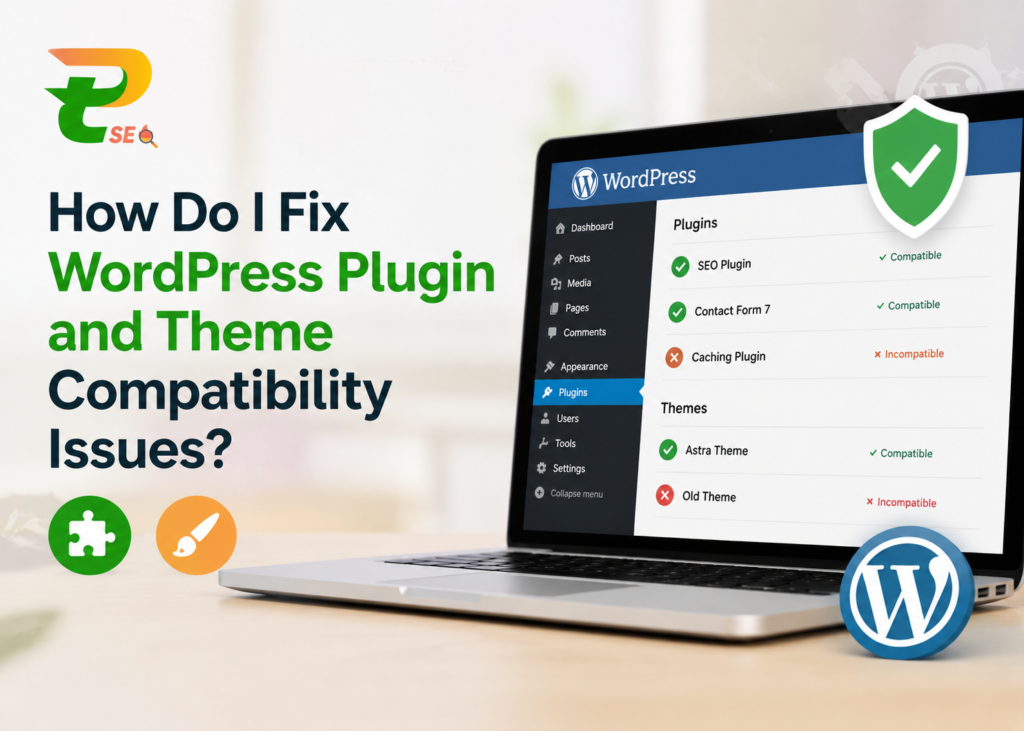
Running a WordPress website can feel smooth until a plugin update suddenly breaks your layout, slows down the site, or causes error messages. Compatibility problems between themes and plugins are one of the most common challenges website owners face. Whether you manage a business website, an eCommerce store, or a high-traffic portal, even a small conflict can affect user experience, SEO rankings, and conversions.
At The Perfect SEO, we regularly work with businesses that struggle with broken functionality after plugin updates, theme modifications, or WordPress core changes. Most compatibility issues are preventable when websites are maintained properly and tested before deployment.
This detailed piece explains how to identify, troubleshoot, and resolve WordPress plugin and theme conflicts without damaging your website.
What Causes WordPress Plugin and Theme Compatibility Problems?
WordPress operates through a combination of:
- Core WordPress files
- Themes
- Plugins
- Custom code
- Hosting configurations
When one component does not properly interact with another, conflicts appear. These issues often happen because:
- Plugins use outdated coding standards
- Themes override important WordPress functions
- PHP versions are incompatible
- Multiple plugins try to perform the same task
- Updates introduce unsupported features
- Developers fail to follow WordPress coding practices
Compatibility issues can appear suddenly or slowly develop over time as your website grows.
Common Signs of Plugin and Theme Conflicts
Before fixing the problem, you need to recognize the symptoms. Some warning signs include:
White Screen of Death
Your website loads a blank white page without errors. This usually happens after installing or updating a plugin or theme.
Broken Website Layout
Menus disappear, page sections shift, or styling becomes inconsistent. CSS conflicts are common between page builders and themes.
Slow Website Performance
Conflicting scripts and poorly optimized plugins increase loading time and server usage.
Error Messages
You may see:
- Fatal errors
- Syntax errors
- Memory limit warnings
- JavaScript console errors
Admin Dashboard Issues
Sometimes the backend becomes inaccessible, preventing plugin management or content updates.
Features Stop Working
Forms fail to submit, sliders stop moving, checkout pages break, or login systems malfunction.
Why Compatibility Issues Affect SEO
Many website owners ignore technical conflicts until traffic starts dropping. Plugin and theme issues directly impact SEO performance.
Problems can lead to:
- Slow page speed
- Increased bounce rates
- Mobile usability errors
- Broken internal links
- Crawlability problems
- Server downtime
- Core Web Vitals failures
Search engines prioritize user experience. A broken or unstable website can reduce rankings significantly.
Step 1: Backup Your Website Before Troubleshooting
Never attempt fixes without a complete backup.
Create backups of:
- Website files
- Database
- Media uploads
- Theme files
- Custom code
Use trusted backup plugins or your hosting provider’s backup system.
A backup allows you to restore the site instantly if something goes wrong during troubleshooting.
Step 2: Enable WordPress Debug Mode
Debug mode helps identify the exact source of errors.
Add the following code to the wp-config.php file:
define('WP_DEBUG', true);
define('WP_DEBUG_LOG', true);
define('WP_DEBUG_DISPLAY', false);
This creates a debug log file inside:
/wp-content/debug.logThe log records PHP errors, warnings, and notices that help locate the problematic plugin or theme.
Step 3: Check Recent Changes
Compatibility problems often appear after:
- Plugin updates
- Theme updates
- WordPress core updates
- Hosting migrations
- PHP version changes
- New plugin installations
Ask yourself:
- What changed before the issue started?
- Did you update multiple plugins simultaneously?
- Did the hosting company upgrade PHP automatically?
Identifying recent modifications speeds up troubleshooting.
Step 4: Deactivate All Plugins
The fastest way to detect a plugin conflict is by disabling plugins.
How to Test
- Deactivate all plugins
- Refresh your website
- Check if the issue disappears
If the problem is fixed, reactivate plugins one by one.
After each activation:
- Reload the site
- Monitor errors
- Test important functionality
The plugin that triggers the issue is likely causing the conflict.
Step 5: Switch to a Default WordPress Theme
If plugin testing does not solve the issue, your theme may be responsible.
Temporarily activate a default WordPress theme such as:
- Twenty Twenty-Four
- Twenty Twenty-Three
- Twenty Twenty-Two
If the issue disappears after switching themes, the active theme likely contains:
- Outdated code
- Improper template overrides
- Unsupported functions
- Page builder conflicts
Premium themes with excessive customization are often vulnerable to compatibility problems.
Step 6: Verify PHP Version Compatibility
Many website owners overlook PHP compatibility.
Some plugins require newer PHP versions, while older themes may break on updated PHP environments.
Check your PHP version inside:
WordPress Dashboard → Tools → Site HealthMost modern WordPress websites perform best on PHP 8.x versions.
Before updating PHP:
- Confirm plugin compatibility
- Verify theme support
- Test changes in staging mode
Step 7: Use a Staging Website
A staging environment is essential for professional website management.
A staging site is a duplicate version of your live website used for testing changes safely.
Benefits include:
- Safe plugin testing
- Theme compatibility checks
- Error identification
- Performance monitoring
Many hosting providers offer one-click staging features.
At The Perfect SEO, staging environments are part of every major WordPress maintenance process because they prevent live website disruptions.
Step 8: Look for JavaScript Conflicts
Not all compatibility issues are caused by PHP.
JavaScript conflicts commonly occur with:
- Sliders
- Popups
- Page builders
- Form plugins
- Animation libraries
Open browser developer tools and inspect the Console tab for errors.
Typical issues include:
- Duplicate jQuery loading
- Missing scripts
- Uncaught JavaScript exceptions
Developers can resolve these by:
- Removing duplicate libraries
- Deferring scripts properly
- Updating outdated JavaScript files
Step 9: Check Plugin Quality Before Installation
Not all plugins are developed professionally.
Before installing a plugin, review:
- Update frequency
- User ratings
- Active installations
- Support responsiveness
- Compatibility with latest WordPress version
Avoid plugins that:
- Have not been updated for years
- Receive repeated security complaints
- Use outdated coding structures
Fewer high-quality plugins are better than dozens of poorly maintained ones.
Step 10: Avoid Plugin Overload
Many websites suffer because they use too many plugins simultaneously.
Every plugin adds:
- Database queries
- Scripts
- CSS files
- Security risks
- Resource consumption
Common examples of plugin overlap include:
- Multiple SEO plugins
- Multiple caching plugins
- Several page builders
- Duplicate security plugins
Too many overlapping tools increase the risk of conflicts dramatically.
Step 11: Update Themes and Plugins Carefully
Blindly updating everything at once is risky.
Professional update workflow includes:
- Backup the website
- Test updates in staging
- Update one component at a time
- Monitor performance
- Review error logs
Automatic updates may introduce sudden conflicts without warning.
Managed maintenance reduces these risks significantly.
Step 12: Remove Unused Themes and Plugins
Inactive plugins and themes still create security and compatibility concerns.
Unused files can:
- Become malware targets
- Consume storage
- Cause accidental conflicts
- Slow maintenance processes
Keep only:
- Active plugins
- Current theme
- One default WordPress theme for testing
Everything else should be deleted completely.
Step 13: Increase WordPress Memory Limit
Some conflicts occur because plugins exceed available server memory.
Symptoms include:
- Fatal memory exhausted errors
- Admin dashboard crashes
- Slow backend loading
Increase memory limit inside wp-config.php:
define('WP_MEMORY_LIMIT', '256M');High-resource websites may require even more memory depending on traffic and plugin usage.
Step 14: Check for Theme Builder Conflicts
Page builders often create compatibility issues with themes.
Popular builders include:
- Elementor
- WPBakery
- Divi
- Beaver Builder
Common problems involve:
- Broken layouts
- Mobile responsiveness issues
- CSS overrides
- Script duplication
Use themes officially optimized for your page builder to reduce problems.
Step 15: Scan for Malware
Sometimes compatibility symptoms are actually malware infections.
Hackers often inject malicious scripts into:
- Theme files
- Plugin directories
- Database entries
Signs include:
- Unexpected redirects
- Spam pages
- Suspicious admin accounts
- Strange popups
Use trusted security scanners to inspect your website thoroughly.
Step 16: Review Server-Level Conflicts
Not every issue originates from WordPress itself.
Hosting configurations can create compatibility challenges through:
- ModSecurity rules
- Firewall restrictions
- PHP extensions
- Caching systems
- CDN settings
For example:
- Aggressive caching may break dynamic plugins
- Security firewalls may block AJAX requests
- Missing PHP modules may disable plugin functions
Collaborate with your hosting provider when server-related errors appear.
Step 17: Keep Custom Code Organized
Many WordPress websites use custom snippets added directly into theme files.
Poorly written code can conflict with:
- Plugin updates
- WordPress core changes
- PHP upgrades
Instead of editing theme files directly:
- Use child themes
- Store custom functions properly
- Document modifications clearly
This reduces long-term maintenance risks.
Step 18: Use Error Monitoring Tools
Professional websites benefit from continuous monitoring.
Helpful tools include:
- Query Monitor
- New Relic
- Debug Bar
- Server log analyzers
Monitoring tools help identify:
- Slow database queries
- Script conflicts
- PHP errors
- Resource bottlenecks
Proactive monitoring prevents small issues from becoming major website failures.
Best Practices to Prevent Future Compatibility Problems
Choose Reliable Themes
Use professionally coded themes from trusted developers.
Avoid heavily bloated themes filled with unnecessary features.
Limit Plugin Usage
Install only essential plugins.
Each plugin should serve a meaningful business purpose.
Maintain Regular Backups
Automated backups protect against unexpected failures.
Daily backups are recommended for active websites.
Update Consistently
Delaying updates increases compatibility and security risks.
Regular maintenance keeps systems stable.
Use Managed WordPress Hosting
Quality hosting providers optimize environments specifically for WordPress performance and compatibility.
Test Before Launching Changes
Never test major updates directly on a live website.
Staging environments should always be part of the workflow.
When You Should Hire WordPress Experts
Some compatibility issues become too complex for basic troubleshooting.
Professional support is recommended when:
- Your website generates business revenue
- You run WooCommerce stores
- The site experiences frequent crashes
- SEO rankings are declining
- Custom development is involved
- Malware infections appear repeatedly
Experienced WordPress professionals can identify root causes faster and prevent recurring issues.
At The Perfect SEO, technical WordPress troubleshooting includes plugin audits, theme optimization, security analysis, performance monitoring, and long-term maintenance support for business websites across industries.
Final Thoughts
WordPress plugin and theme compatibility problems are frustrating, but they are manageable with the right process. Most issues result from rushed updates, poor-quality plugins, outdated themes, or lack of testing.
A structured troubleshooting approach helps you:
- Detect conflicts quickly
- Protect website performance
- Improve security
- Maintain SEO rankings
- Prevent downtime
Stable WordPress websites require ongoing maintenance, proper testing environments, and careful plugin management. Businesses that invest in proactive monitoring and professional support experience fewer technical disruptions and better long-term website performance.